Difference between revisions of "Keyboard Shortcuts"
From Synfig Studio :: Documentation
| Line 154: | Line 154: | ||
<gallery> | <gallery> | ||
| − | Image:hotkeys-visual-guide- | + | Image:hotkeys-visual-guide-SVN2011.png|PNG Version - SVN2011 |
</gallery> | </gallery> | ||
Revision as of 23:03, 11 April 2008

Here is a list of some of the keyboard sortcuts you currently have at your disposal. These are the defaults. There is a way to customize these, but it is currently not intuitive. Basically you need to edit the accelrc file in your synfig settings directory.
| Keystroke | Description |
| <Control>-A | Select all ducks |
| <Shift><Control>-A | Select all layers |
| <Control>-C | Copy currently selected layer(s) and put them in the clipboard |
| <Control>-D | Deselect all ducks |
| <Shift><Control>-D | Deselect all layers |
| <Control>-G | Toggle grid show |
| <Control>-I | Import image |
| <Control>-L | Toggle grid snap |
| <Control>-N | New composition (since r1386) |
| <Control>-O | Open composition (since r1386) |
| <Alt>-O | Toggle onion skin (since r1525 - it was Control-O until r1386) |
| <Control>-P | Play the current animation in the WorkArea |
| <Control>-Q | Quit Synfig Studio |
| <Control>-R | Redo |
| <Control>-S | Save |
| <Control>-V | Paste the layer(s) from the clipboard above the currently selected layer |
| <Control>-W | Closes the current animation document. |
| <Control>-X | Cut currently selected layer(s) and put them in the clipboard |
| <Control>-Z | Undo |
| <Control>-` | Toggle low/high-resolution (defaults to low resolution) |
| <Control>-0...9 | Change the current rendering quality (lower is better, but 0==10) |
| <Alt>-1 | Toggle display of "Position" ducks |
| <Alt>-2 | Toggle display of "Vertex" ducks |
| <Alt>-3 | Toggle display of "Tangent" ducks |
| <Alt>-4 | Toggle display of "Radius" ducks |
| <Alt>-5 | Toggle display of "Width" ducks (DEFAULTS TO OFF) |
| <Alt>-6 | Toggle display of "Angle" ducks |
| <Control>-'-' | Zoom out of canvas (spacial zoom) |
| <Control>-'=' | Zoom in on canvas (spacial zoom) |
| <Control>-<Shift>-Z | Zoom canvas to 100% (spacial zoom) |
| <Control>-'_' | Zoom out of timeline (temporal zoom) |
| <Control>-'+' | Zoom in on timeline (temporal zoom) |
| <Control>-',' | Move backward one frame |
| <Control>-'.' | Move forward one frame (be careful - can step past the end of an animation; fixed in svn r452) |
| <Control>-'<' | Move backward one second |
| <Control>-'>' | Move forward one second |
| <Control>-'[' | Move backward to previous keyframe |
| <Control>-']' | Move forward to next keyframe |
| Home | Jump to beginning of timeline (broken; fixed in svn r451) |
| End | Jump to end of timeline (broken; fixed in svn r451) |
| <Control>-'(' | Decrease workarea pixel size |
| <Control>-')' | Increase workarea pixel size |
| <Control>-<Alt>-'(' | Decrease 'amount' of selected layer |
| <Control>-<Alt>-')' | Increase 'amount' of selected layer |
| <Shift>-PgUp | Raise currently selected layers |
| <Shift>-PgDn | Lower currently selected layers |
| <Alt>-A | Select 'normal' tool |
| <Alt>-V | Select 'smooth move' tool (shortcut added in svn r548) |
| <Alt>-S | Select 'scale' tool (shortcut changed in svn r1985) |
| <Alt>-T | Select 'rotate' tool (shortcut changed in svn r1985) |
| <Alt>-M | Select 'mirror' tool (shortcut added in svn r548) |
| <Alt>-C | Select 'circle' tool (shortcut added in svn r548) |
| <Alt>-R | Select 'rectangle' tool (shortcut added in svn r548) |
| <Alt>-Q | Select 'star' tool (tool and shortcut added in svn r1983) |
| <Alt>-G | Select 'gradient' tool |
| <Alt>-P | Select 'polygon' tool (shortcut added in svn r548) |
| <Alt>-B | Select 'bline' tool |
| <Alt>-X | Select 'text' tool (tool and shortcut added in svn r1959) |
| <Alt>-F | Select 'fill' tool |
| <Alt>-E | Select 'eyedrop' tool |
| <Alt>-Z | Select 'zoom' tool |
| <Alt>-D | Select 'draw' tool (shortcut changed in svn r2009) |
| <Alt>-K | Select 'sketch' tool (shortcut added in svn r548) |
| <Alt>-W | Select 'width' tool (shortcut changed in svn r2009) |
| F8 | Canvas Properties |
| F9 | Render |
| F11 | Preview |
| F12 | Canvas Options (Grid size, etc.) |
| <Escape> | Stop (stop what? not sure...) |
| <Delete> | Deletes the currently selected canvas. (CAREFUL! There is currently a bug which makes this work in just about any context! ie: if you are editing a parameter and press the delete key, it will delete the layer! this can be easily undone, but just keep it in mind) |
| <Cursor Key> | Nudge the currently selected duck(s) one pixel in the given direction |
| <Shift>-<Cursor Key> | Nudge the currently selected duck(s) ten pixels in the given direction |
Hotkeys Visual Guide
A good way to learn all this shorcuts is putting them in front of your eyes all the time. Because of that, we bring to you a beatiful "Hotkeys Visual Guide" that you can use as a poster.
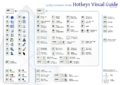
PNG Version - SVN2011

We offer you two print sizes (both in PDF):
- [A4 Version]
- [A3 Version]
And these are the source files in SVG format:
- [A4 Version]
- [A3 Version]
Give us your feedback and comments.

